 Vendune
Guide / A connected local shop
Try the commerce playground.
Follow a product through checkout, a branching event flow and a generated invoice. Then explore apps, staging and optional AI.
1. Start and create a personal account
Follow the local quickstart. In Vendune Studio, select Create shop on the login page to create a personal merchant account. Customers have separate accounts.
2. Prepare the separate shop
python3 scripts/playground.py --email your-personal-merchant@example.testEnter your existing account's password privately. The script prints four links and creates Commerce Playground through the same personal-owner HTTP API. Its private ignored state contains no password or session token. Repeating setup preserves edits and existing orders; no model/provider calls or orders are made by setup. Sign in if needed and select Commerce Playground in the workspace picker.
3. Product, coupon and checkout
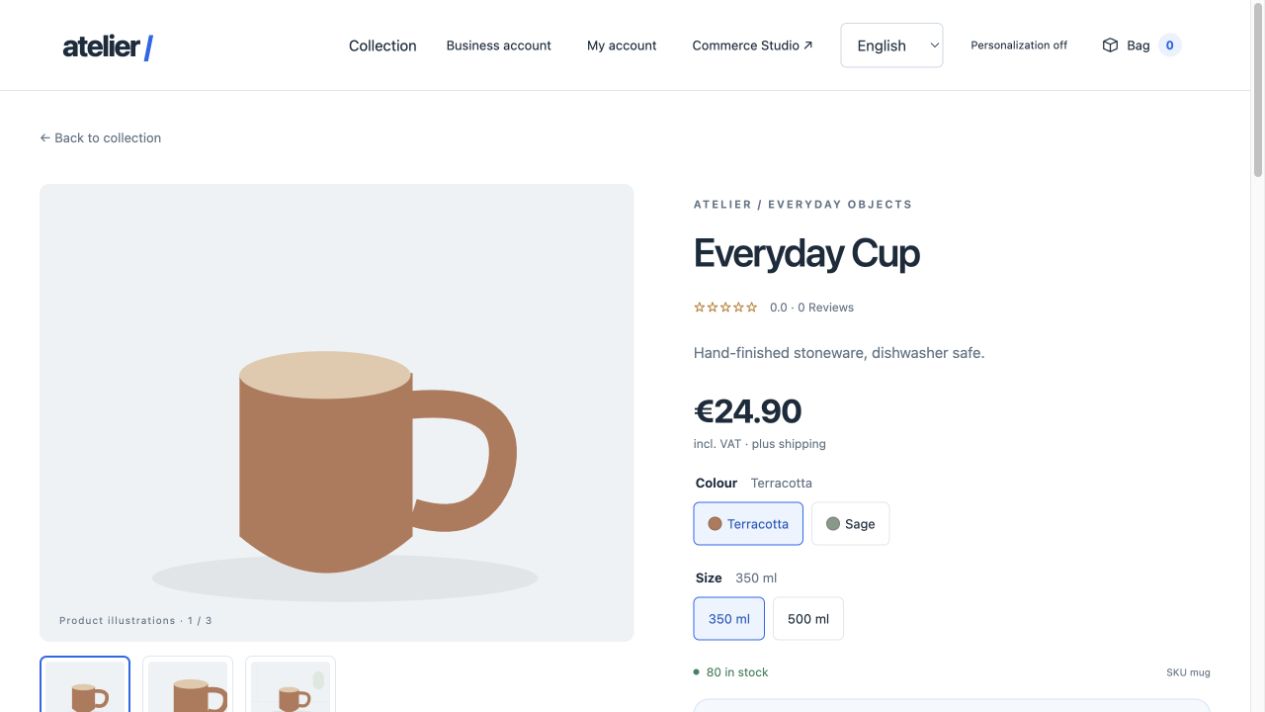
Open the printed mug link. Switch SKU, gallery and quantity. Try the installed engraving app, add the product to the bag and apply TRY10. Continue as a guest or create your own customer account; shared demo accounts are absent when SEED_DEMO=false. Enter synthetic addresses, apply the delivery/payment selection and place an order with simulated card payment.
4. Follow both flow branches
In Studio → Rules & flows → Event flows, inspect Order routing playground. An order below €100 follows the standard tag branch and creates an invoice. An order at least €100 follows the priority tag branch, waits 15 seconds, then creates an invoice. Two lamps exercise the priority path in the default sample catalog. Coupons/B2B prices can change the threshold outcome.
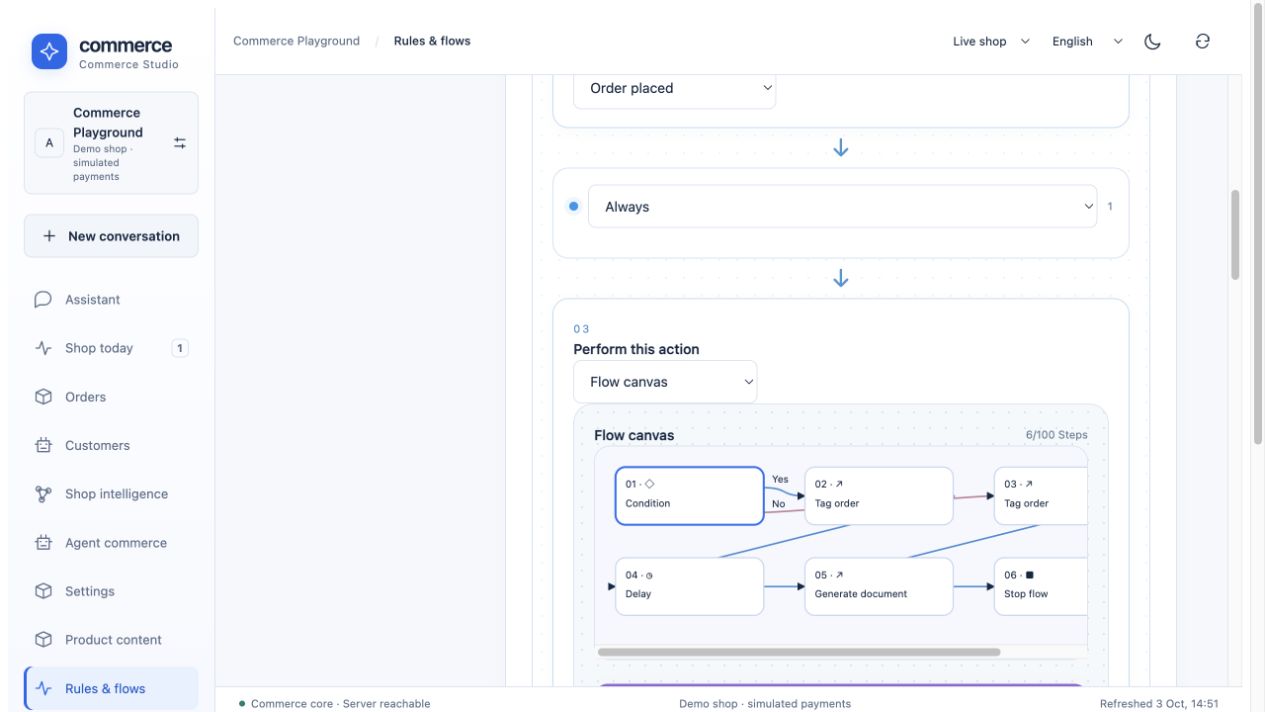
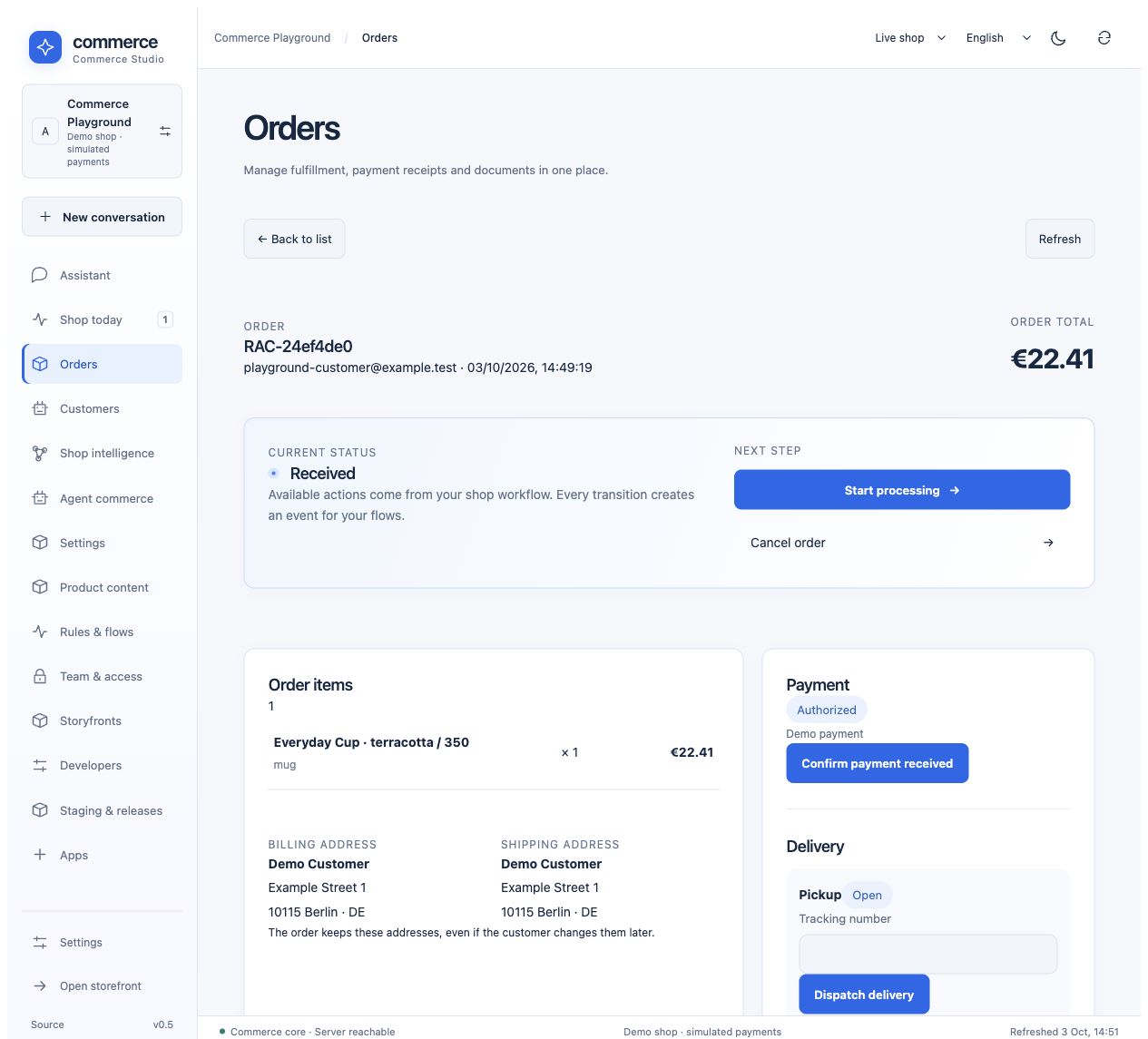
The installed playground flow has no AI or external-send node. Open Flow executions to inspect persisted decisions and scheduled continuation. In Orders, open the order and download its generated PDF under Documents. Issuer details are centrally managed and visibly synthetic.
5. Explore the remaining workspaces
- Product content: translations, specifications, rich descriptions, assets and cross-selling.
- Home collection sales channel: the printed collection link filters mug, lamp, chair and their variants.
- Shop knowledge: import/publish a data sheet; answering product questions additionally needs a configured model.
- Staging & releases: edit a private environment and publish selected units.
- Apps, Storyfronts and Developers: use each integration's configuration and reviewed draft/release paths.
- Team & access: compare permitted reads and rejected writes using a reader or scoped key.
External mail, OAuth apps, Storyfront generation and cloud AI need their own services/credentials. Setup does not invoke them. Read the full walkthrough and exact feature boundaries.